
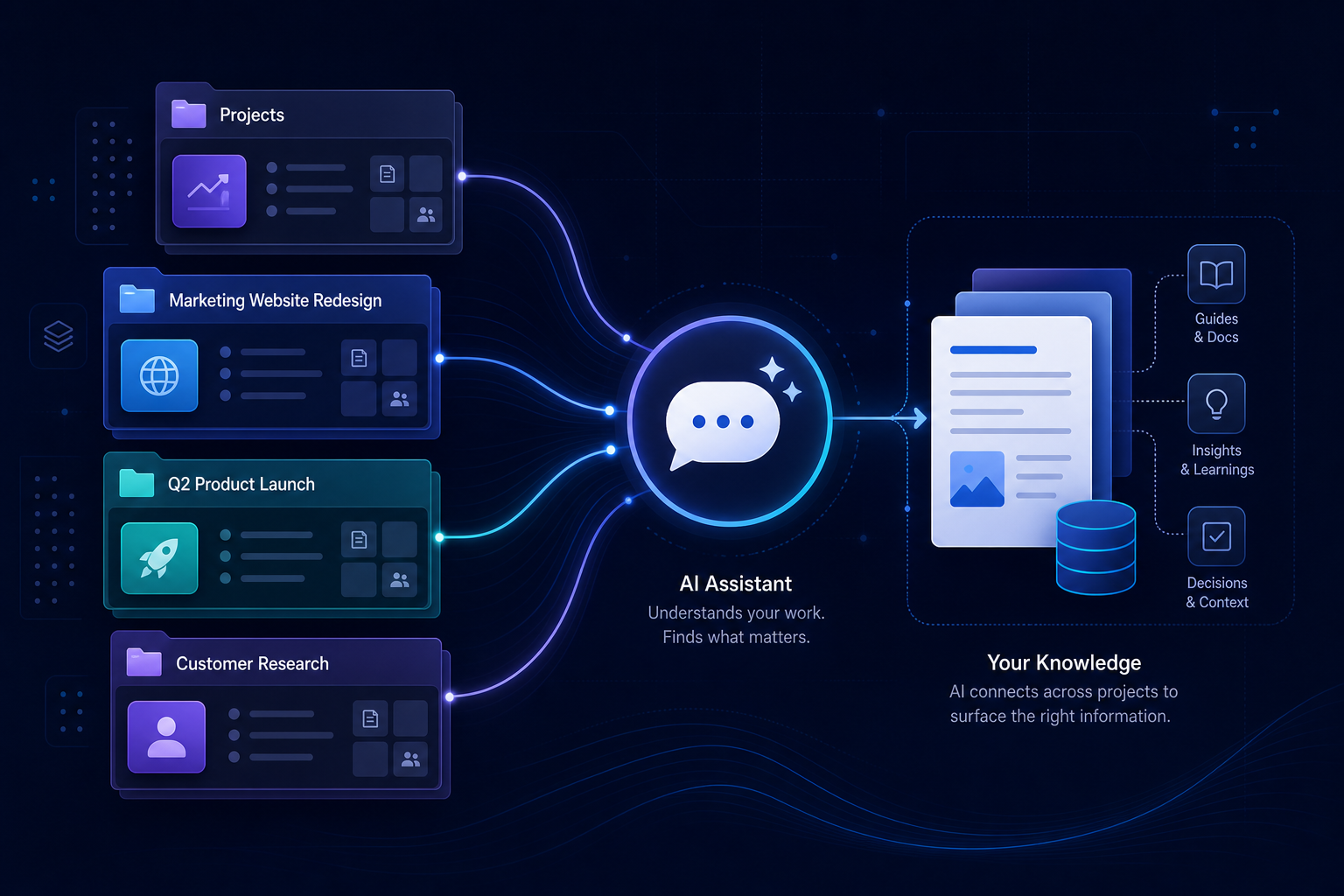
Projects are TKCORE AI workspaces built around one topic, a bundle of source material, and a stable way of chatting. Think of them as a small “reading room plus chat desk” per customer, product line, or internal function—so the model stays aligned with your context instead of mixing everything into one boundary-less thread. For a public overview, see the Projects intro; when signed in, open the library from /projects.
What problem do Projects solve?
Teams often hit context drift: last week you were on Product A specs, but this week the model still assumes A when you draft Product B email. Or files live in personal folders and everyone pastes ad hoc. Projects add a layer that binds name, topic, description, and writing preferences (tone, length, notes) with documents / knowledge-base material, so one business line keeps a consistent voice across sessions.
Recommended usage patterns
1) One project per business line, account, or campaign
Create a separate project for each major customer, product line, or initiative from the project list. Use a clear project name and topic; spell out guardrails in the description when needed (for example: “2026 pricing only—do not infer unreleased features”). Maintain sources inside the project detail view and keep that project selected while chatting to reduce cross-talk.
2) Documents first: ingest, index, then ask
Upload or attach PDFs, Markdown, plain text, and similar formats inside the project workspace (supported formats and indexing states depend on your backend). A practical rhythm is: upload → wait for indexing → sanity-check with short questions (for example: “From section three, list three compliance caveats”), then move into drafting or customer-facing answers. You can still pair with specialised tools from the tools directory, but treat project context as the primary anchor for facts.
3) Home chat and the ?project= query
When you jump from a project tile into home chat, the route carries a project query string (for example ?project=prj_abc123) so send/save-style APIs line up with the active workspace.
That matters when you switch projects in the sidebar or share a bookmark: the URL and the active project stay in agreement, lowering the risk of “UI shows B while the request still targets A.”
4) Signed out vs signed in: local-first vs cloud-backed
On the browser, the project library is cached locally as a fallback. With a valid signed-in session (JWT), list/detail CRUD and document flows go through
/api/projects so the same project library can follow you across devices.
If you are not signed in, you can still learn the “project” organising pattern locally; for team-grade persistence and KB indexing, sign in and prefer server-backed
prj_… project IDs when calling chat APIs.
From the project library to project-scoped chat
project query parameter to lock the same knowledge boundary.
Why Projects help
- Isolation: workspaces do not bleed into each other—ideal for multi-customer, multi-regulatory, or multi-locale brand lines.
- Sources + preferences together: topic, description, and tone/length notes live with the project, so you repeat fewer “system prompt” pastes.
- Routing matches chat: resolving
?project=from the address bar first reduces mismatches right after you switch projects. - Progressive adoption: learn the workspace locally, then sync through
/api/projectsonce signed in—solo trials and team rollouts share one mental model. - Works with the tool directory: Projects anchor facts and boundaries; specialised tools handle format and genre—closer to how product and ops teams actually ship.
Planning for capacity
The browser-side project library enforces limits on total projects and documents per project to protect performance and storage quotas; cloud-backed projects follow server rules. If you approach the cap, merge closed initiatives into archive-style projects, or keep long-tail sources as external links with only the critical excerpts ingested.
Suggested next steps
- Read the Projects intro and study the sample layout.
- After signing in, create two or three projects you will actually reuse—not infinite fragmentation.
- Seed each project with three to five canonical documents you cite every week; validate Q&A and drafting quality before scaling uploads.
- When you need polished outbound copy, pair with the right runner from the AI tools directory for tone and layout passes.
Related: Projects list, Projects overview, FAQ, Contact.