About this free AI tool
TKCORE AI lists this as a free tool in the directory: overview, use cases, a short tutorial, and FAQs—plus links to related tools and blog guides.
TKCORE Email Writer is a free, browser-based email drafting workspace—not a generic chat box. Paste bullet points or a short brief (recipient, goal, tone, must-include facts), pick a model such as DeepSeek, Qwen, Kimi, or TKCORE Pro, and generate a send-ready draft with subject line, greeting, body, and sign-off you can copy or export.
Sales teams, founders, support leads, and recruiters send dozens of emails each week. Most do not need another open-ended conversation—they need a repeatable page where audience, formality, and call-to-action stay encoded in the form. That is what this workspace delivers: professional outreach, follow-ups, internal requests, and customer replies from structured input, not from retyping the same instructions in chat every time.
Competitors like standalone email AI tools focus on quick one-shot generation. TKCORE adds a multi-model workspace, project knowledge files for brand voice, optional Web search / Deep thinking, and a dedicated email workflow tab alongside Email Response Generator for replies—so your team keeps compose and reply on related URLs with shared context.
Who it is for: sales reps, founders, customer success, HR/recruiting, operations, and anyone who writes recurring email formats— follow-ups, introductions, support updates, meeting requests—not one-off chat answers.
What you get on this page: structured fields for recipient context and desired action, tone and length controls in Advanced options, live preview, and exports. Pair with TKCORE Projects to attach tone guides, product facts, and compliance notes for every draft.
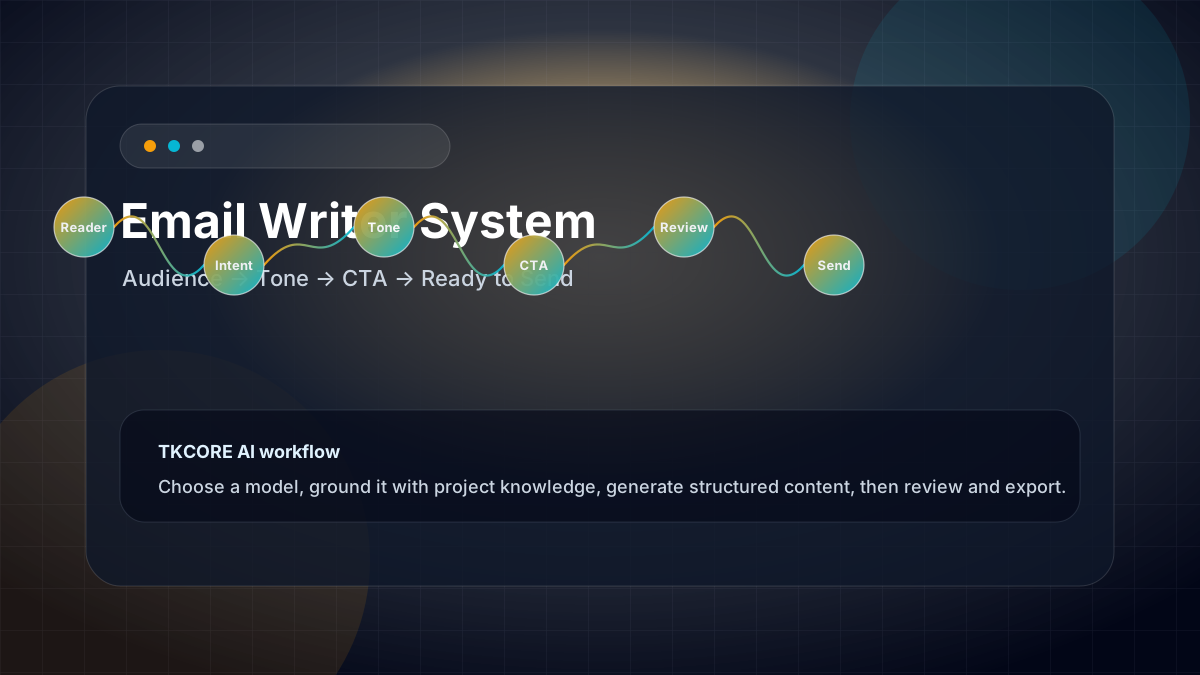
Features
- Compose-from-brief workflow — main instruction box plus email-specific fields: recipient, subject intent, desired action, and formality.
- Multi-model picker — compare clarity, warmth, and brevity across DeepSeek, Qwen, Kimi, GLM, MiniMax, and TKCORE models.
- Subject + body + sign-off — output structured as a real email, not loose paragraphs you must reformat.
- Advanced tone & length — set professional, friendly, or direct voice and approximate word count before you generate.
- Email workspace tabs — switch to Reply mode on the same UI pattern when you need to respond to an incoming message.
- One-click exports — copy, download .txt, Word (.doc), or PDF from the same workspace.
- Knowledge & tools rail — attach product sheets, pricing rules, or support macros via project knowledge files.
- Try sample prompts — spin up a realistic email brief instantly when exploring the UI.
Why teams choose a dedicated email writer page
- Beat the blank inbox — turn bullets, CRM notes, or Slack threads into a polished draft in minutes.
- Consistent brand voice — encode tone and forbidden phrases once; regenerate without re-explaining rules.
- Clear CTAs — specify the desired action so the closing line is direct, not buried in hedging.
- Model A/B testing — run the same brief on a fast model vs a reasoning model and keep the version that fits your reader.
- Fewer tab switches — compose here, export, paste into Gmail or Outlook—no chat history archaeology.
When to use it
TKCORE Email Writer fits any workflow where you know the facts but need the message shaped for a specific reader. Below are the most common jobs teams run on this page every week.
- Sales follow-ups — polite nudges after demos, trials, or proposals with one clear next step.
- Founder outreach — investor updates, partnership intros, and warm introductions with the right level of formality.
- Customer support — empathetic replies with policy-accurate language (always verify facts before send).
- Recruiting — candidate outreach, interview scheduling, and rejection notes that stay respectful and concise.
- Internal requests — IT access, budget approvals, and cross-team asks with bullet-backed context.
- Lifecycle email — onboarding nudges, renewal reminders, and feature announcements (pair with AI writer for long-form newsletters).
- Meeting & event mail — agendas, recap summaries, and calendar holds from rough notes.
Problems, value, and outcomes
Problems it helps solve: “I stare at a blank compose window,” or “ChatGPT gave me paragraphs with no subject line and the wrong tone for our CEO.” Value: one URL, repeatable fields, structured email output, and exports—less friction than juggling a chat thread and your mail client.
Generic chat tools excel at brainstorming but often miss email structure: subject lines, appropriate greetings, scannable body paragraphs, and sign-offs that match your role. A dedicated email workspace encodes those expectations so you edit for facts and voice—not for format.
Human review still matters: verify names, dates, pricing, and legal claims before you hit send—especially for customer-facing, financial, or HR messages.
How TKCORE compares
Choosing an AI email tool is about workflow fit—not just fluent sentences. Here is how TKCORE Email Writer compares to common alternatives for professional messaging.
| Capability | TKCORE Email Writer | Generic chat (ChatGPT, etc.) | Gmail / Outlook built-in AI |
|---|---|---|---|
| Structured email fields | Recipient, action, tone, length | Manual prompt each time | Inline assist only |
| Subject + sign-off structure | Built into output format | Ask explicitly each run | Varies by provider |
| Multi-model choice | DeepSeek, Qwen, Kimi, GLM, more | Model picker in chat | Single vendor model |
| Brand / knowledge context | Project knowledge files | Custom GPTs or pasted text | Limited workspace memory |
| Compose + reply workflow | Linked Email Response Generator | Separate chat threads | Reply assist in inbox |
| Word / PDF export | One-click from workspace | Copy-paste + manual format | Usually copy only |
Bottom line: if you send structured emails weekly, TKCORE gives you a production URL with lore attached—not a conversation that forgets your tone guide. For one-off questions, chat is fine; for outreach, support, and recruiting at scale, a dedicated email workspace wins on consistency.
What teams say
“We saved our follow-up template in knowledge and run every trial nudge through Email Writer. Reps paste CRM bullets, export, and send—tone stays on-brand without a style guide in every Slack thread.”
“Support macros were too rigid; chat was too loose. This page hits the middle—structured fields, empathetic tone, and I still verify policy before send.”
“Founder intros used to take twenty minutes each. Now I brief recipient, goal, and tone in three lines, compare two models, and edit one paragraph for personal detail.”
These are representative workflows from teams using TKCORE email tools. Results vary by brief quality and review time—always fact-check before sending.
How it works
How to use Email Writer (step-by-step)
- Fill email fields — recipient role, subject intent, desired action, and key facts in the structured form (or main brief box).
- Write your brief — bullet the must-include points, deadline, and anything to avoid. Use Try sample for a starter.
- Choose language & model — fast models for rough drafts; stronger models when nuance or diplomacy matters.
- Open Advanced options — set tone, length, and any task-specific levers before you generate.
- Generate & review — check subject line, greeting, facts, and CTA; edit in the preview, then copy or export.
Tips for better email drafts
- Name the reader: “VP Engineering at mid-market fintech” beats “professional contact.”
- One CTA: “Book a 15-min call” or “Reply with your availability”—not three competing asks.
- Front-load constraints: word limit, forbidden claims, and must-mention product facts at the top of the brief.
- Attach knowledge for recurring campaigns—pricing, legal disclaimers, and tone examples stay consistent.
- Compare models when tone is critical—run the same brief twice and merge the best lines manually.
Example outcome
Example workflow: a sales rep drafts a post-demo follow-up: recipient is a trial admin, goal is to schedule a check-in, tone friendly-professional, ≤150 words. They generate with Qwen, tweak the subject line, export .txt, and paste into Gmail— then switch to Email Response Generator when the prospect replies.
Support team case study: a CS team attaches refund policy and escalation macros as knowledge files. Agents paste ticket summaries into the brief, set tone to empathetic-direct, and generate first drafts they verify against the knowledge base before send. Handle time dropped because structure is consistent.
Recruiting case study: an HR coordinator uses the same template weekly: role, company hook, interview ask, inclusive tone. They export Word for manager approval on senior hires, then personalize one sentence per candidate—volume up, generic blast emails down.
Examples
Brief example
To IT — request VPN access for new hire starting Monday. Bullets: name Jane Doe, role Product Designer, manager approval attached. Semi-formal. Subject + body + sign-off. ≤200 words.
Expected output
A complete email with clear subject line, appropriate greeting, scannable body paragraphs, specific CTA, and professional sign-off—ready for human edit and send.
Sales follow-up brief
Follow-up to SaaS trial user who attended demo 5 days ago, no reply. Mention one product benefit, offer 15-min call, friendly-not-pushy, under 150 words.
Reusable templates
Outreach template
Write an email to [recipient] about [topic]. Goal: [desired action]. Tone: [friendly/professional/direct]. Include [context], [deadline], and a concise closing CTA.
Internal request template
Email to [team] requesting [action]. Facts: [bullets]. Tone: [formal/semi-formal]. Must include [deadline/attachment reference]. Keep under [word count] words.
Pre-send checklist
Verify recipient name, dates, pricing, links, tone matches reader, one clear CTA, no duplicate subject lines, run spell-check, confirm compliance with brand/legal rules.
FAQ
- Is TKCORE Email Writer free to use?
- The workspace is listed as a free tool in the TKCORE directory. You can compose, generate, and export from the page; API usage may follow your account plan and connected model limits when signed in.
- What is Email Writer best used for?
- Professional emails, outreach drafts, follow-ups, internal requests, and support-style messages. Provide recipient context, tone, and desired action for the strongest drafts.
- How is this different from Email Response Generator?
- Email Writer composes new messages from your brief. Email Response Generator is optimized for pasting an incoming email and drafting a reply—both live in the same email workspace tabs.
- Can I control tone and length?
- Yes. Use Advanced options and the email-specific fields to set formality, approximate length, and must-include facts before you generate.
- Can I export to Word or PDF?
- Yes. After generation, use Copy, .txt, Word (.doc), or PDF from the Export toolbar when output is available.
- Do I need an account?
- You can read this page and explore the UI. Sign in may be required when your deployment enables authenticated generate calls—same pattern as other TKCORE writing tools.
- Can I use drafts for customer outreach?
- Yes for typical business email, subject to human review for accuracy, compliance, and brand voice—especially for pricing, legal, and HR content.
- Which model should I pick?
- Use a fast model for routine internal mail; use stronger models when diplomacy, nuance, or complex context matters. Compare two runs on the same brief.
- Can teams share the same workflow?
- Yes. Share the /tools/t/email-writer URL and standardize brief templates. Use TKCORE Projects so knowledge files and tone guides apply for every teammate.
- Will the email include a subject line?
- Yes—the tool is tuned to produce subject line, body, and sign-off as a structured email draft. Always edit the subject for your thread and audience before sending.