About this free AI tool
TKCORE AI lists this as a free tool in the directory: overview, use cases, a short tutorial, and FAQs—plus links to related tools and blog guides.
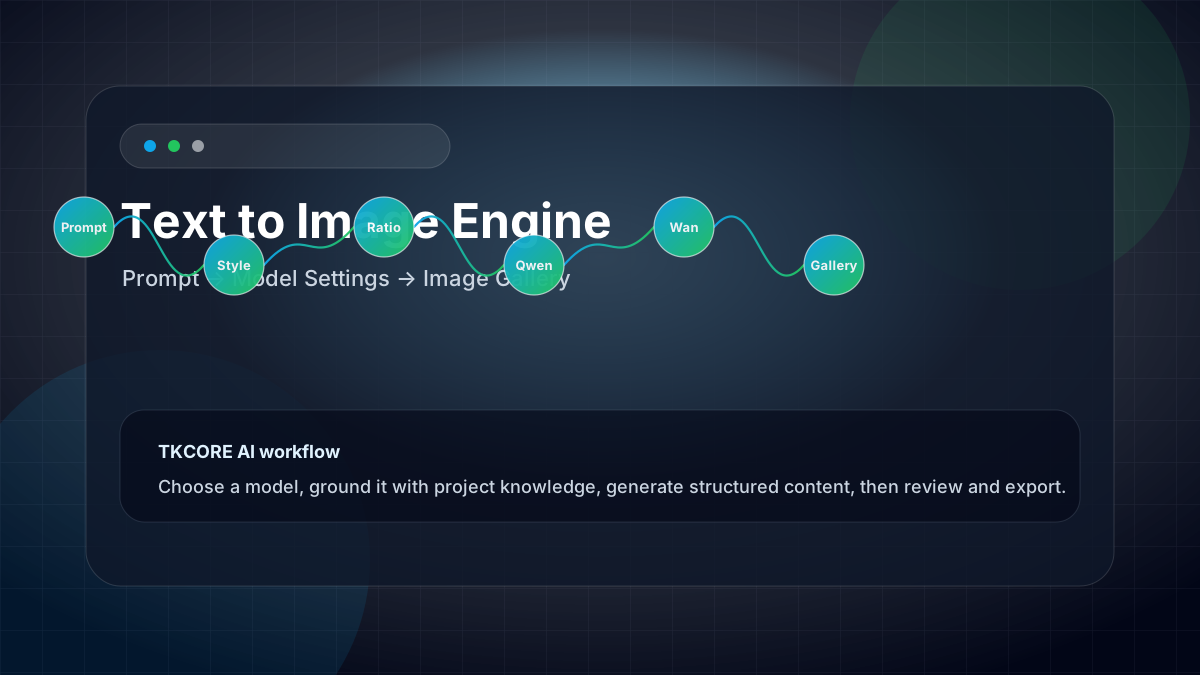
Free AI image generator on TKCORE AI: browse this page without an account to read prompts, model tips, and examples—then sign in to generate. Describe what you want to see, pick a model (Midjourney V7, Z Image Turbo, or Wan / Qwen Image), set aspect ratio and batch size, then download PNGs from Result or History.
You are the art director—no Photoshop required. The model fills in lighting, style, and composition from your words, similar to workflows on ToolBaz Text to Image and other mainstream image studios.
Features
- Multi-model picker — Midjourney V7 for top-tier creative quality; Z Image Turbo for fast drafts; other models (Wan & Qwen Image) for posters, scenes, and sharp text.
- Aspect ratio & batch size — common ratios (1:1, 16:9, 9:16, 4:3, …) plus up to four images per run where the model allows.
- Style presets — optional photographic, anime, cinematic, and 3D suffixes appended to your prompt.
- Negative prompt — on supported models, say what to avoid (blur, watermark, extra fingers) up to 500 characters.
- Result gallery — preview, lightbox, download, and “Reuse” to restore prompt settings from a batch.
- History — this-session list in the browser; signed-in users can load paginated saves from the account API.
When to use it
- Marketing & social — product shots, ad concepts, and feed visuals without stock-photo hunts.
- Concept art & mood boards — explore lighting, palette, and composition before a photoshoot or 3D pass.
- Posters & typography-heavy layouts — Qwen Image models are tuned for text and mixed-language posters (verify spelling in-editor).
- Rapid ideation — Z Image Turbo or Wan Flash for many low-fidelity variations, then a quality pass on Midjourney or Wan Plus.
Problems, value, and outcomes
Problems it helps solve: “I know the picture in my head but can’t find it in stock libraries,” or “my team needs dozens of on-brand variants without a full design sprint.” Value: one URL, fixed controls (model, ratio, count), and a review step before you download—less tab sprawl than juggling disconnected demos.
How it works
Getting a strong image (beginner guide)
- Add detail, not just a noun. Instead of “a dog,” try “a fluffy golden retriever catching a neon-red frisbee in a sunny park, cinematic lighting, highly detailed.”
- Name the medium and mood. Say whether you want a soft watercolor, cyberpunk cityscape, 3D render, or polaroid-style photo.
- Ground the scene. Describe background activity—busy street, quiet forest, blurred studio backdrop—so the subject feels placed in space.
- Match model to job. Midjourney V7 for flagship creative work; Z Image Turbo for speed; Wan / Qwen for mixed-language posters and API-aligned sizes.
Pro tips (think like a photographer)
- Lighting: golden hour, moody rim light, neon backlight, soft morning mist.
- Camera: wide-angle, macro, drone view, low-angle hero shot.
- Lens / film: “35mm lens, f/1.8” or “cinematic IMAX” for photoreal cues.
- Color: vibrant pop, muted pastels, teal-and-orange grading.
Golden rule: direct the “camera operator” with setting, lighting, and mood—the more specific you are, the closer the output lands to your intent.
Prompts are limited to 800 characters on this page to match upstream API limits; keep the core idea up front.
Example outcome
Example workflow: a social team writes one detailed prompt, generates four 1:1 variants with Midjourney V7, picks the best in the Result gallery, downloads PNGs, and reuses the prompt from History to iterate copy-only changes. A signed-in lead can refresh Saved on your account after each run for audit trails.
Examples
Prompt example
A cinematic product photo of a transparent smart speaker on a black glass table, neon cyan rim light, shallow depth of field, ultra-detailed, 16:9.
Expected image direction
A polished hero visual suitable for a blog header, landing-page mockup, social post or paid ad concept after human review.
Reusable templates
Hero image template
[Subject] in [environment], [lighting], [camera angle], [style], [color palette], [mood], high detail, no watermark.
Ad concept template
[Product] shown with [benefit visual], [target audience context], [brand color], [composition], clean background, readable negative space for headline.
FAQ
- Can I use generated images commercially?
- Treat outputs like any AI asset: follow your TKCORE account terms, model provider policies (Midjourney, Wan, Qwen, etc.), and your local copyright rules. Many teams use results in ads, blogs, and thumbnails after a human review pass.
- Why does text in the image look wrong?
- Models are still weak at exact spelling. For logos, signs, or long copy, generate the visual first, then add typography in Figma, Canva, or Photoshop.
- How do I keep the same character in different images?
- Repeat the same detailed character description (hair, clothing, age, props) in each prompt. Results will be close but not pixel-identical—use reference-image APIs when your backend supports them.
- What is the difference between Result and History?
- Result shows the latest batch from your current run. History lists this-session generations in the browser (cleared on refresh) plus account saves when you are signed in.
- Which model should I pick?
- Midjourney V7 for overall quality and native MJ-style prompts; Z Image Turbo for fast, low-cost drafts; Wan models for flexible sizes; Qwen Image Plus/Max for posters and readable text layouts.
- Is this an AI image generator with no login?
- You can explore the full prompting guide, FAQ, and UI without signing in—useful when comparing TKCORE to other image studios. Sign-in is required to run generation and load account history; there is no separate “no login” product, but the education layer is open.
- Do I need to sign in?
- You can read this page without an account. Sign in is required to call the generate API and to load saved history from your account.